


 Loading... Please wait...
- Compare
- Gift Certificates
- Wish Lists
-
- My Account
-
All prices are in USD
Categories
Brands
FAQs
Q: Why are some of my theme images missing?
A: Some theme images (such as icons, arrows, etc.) on your Bigcommerce store are stored in a Master Folder on the server.
Editing your theme stylesheet or creating an images folder in template directory of your store will cause images load from that new folder. If the location doesn't contain all of the images, you will see image errors on your store.
Solution: The following support article explains how to upload the theme images to your local theme folder - Click here.
Q: How to update logo in header and footer section?
A: This is totally a dynamic functionality of bigcommerce we have used in our theme. You need to upload your store logo in your store admin. Once you done with this the logo will get update on bot places.
Please click here to know more, on how to update the logo.
Q: How to update store address, email address & phone number footer section?
A: This is also one of our cool feature, you can you in this theme. You don't need to update the store address, phone number and email address manually every where in the store.
Youn just need to update this data one time only in your store profile setting. Once you done with this, it will reflect on your whole store. Store phone number will get update dynamically as per your store profile as well as the contact address will also get change on contact page.
Please Click here to know more on how to update store profile.
Q: Remove categories from main navigation.
If you want to remove category links from main naviagtion, then follo below steps.
-
Go to Store admin > Design > Edit HTML/CSS
-
Search for "Custom.css" and open it to edit and add below code of css
-
".main-header .CategoryList {display:none;}"
Q: Remove pages and display only categories in main navigation.
If you want to remove category links from main naviagtion, then follo below steps.
-
Go to Store admin > Design > Edit HTML/CSS
-
Search for "Custom.css" and open it to edit and add below code of css
-
".main-header .pages-menu {display:none;}"
Q: How to update images in carousel?
A: The carousel is the set of rotating banners that shows up on the homepage of your store. It's a huge contributor to the look and feel of your store, and is a great way to showcase your products and promotions. You can change out the text and images whenever you want through the control panel.
Q: Update the images of side small banners besign main image slider.
You can update the image and assign the links to the banner using Banner management System.
We have used "Home Page Top Banner" for this section. So you can easily create a banner and apply it to home page at top position.
You can place banner image or you can add some short of content to display it beside the slider from here. The recommended size of the banner image is 800px wide x 543px height.
To know more on how to add banner on home page, please click here.
Q: Update the images of banners below the main image slider.
We have used "Home Page Bottom Banner" for this section. So you can easily create a banner and apply it to home page at bottom position.
You can place banner image or you can add some short of content to display it below the slider from here. The recommended size of the banner image is 900px wide x 156px height.
To know more on how to add banner on home page, please click here.
Q: How to remove small banners and make full width slider?
A: To remove the small banners, you can simply disalbe "Home Page Top Banner". Once you disable this banner the small baners beside the home slider will be removed.
To make the home page slider in full width, please follow below steps:
-
First of all disable home page top banner from banner management. To know more on how to add edit or disable banners, please click here.
-
Go to Store admin > Design > Edit HTML/CSS and search (Cltr+F) for "Default.html"
-
In this file search for this particular code and follow below instruction.
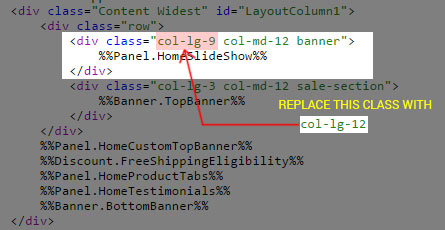
-
This changes will remove small banners beside the home slider and it will make the home slider in full width.
Q: How to remove bottm banner below the image slider?
A: For this section, we have used a custom panel "%%Panel.HomeCustomTopBanner%%" which is located in "default.html" templage.
You can simply search for this panel in Edit HTML/CSS section.
Go to Store admin > Design > Edit HTML/CSS and search (Cltr+F) for "%%Panel.HomeCustomTopBanner%%."
By edithing this panel you can update the banner image or you can add some sort of text as per your requirement and by removing this pagel you can remove the bottom banners below the image slider.
Q: How to make full width bottom banner without content?
A: This section is totally managed by "Banner Management System" of BigCommerce.
We have used "Home Page Bottom Banner" for this section. You can add, edit or remove the content as per your requirement by editing this banner.
But if just want to remove the content and make the banner in full width, then please follow the below steps:
Go to Banner Management and edit "Home Page Bottom Banner" and make modifications as per the attached screen.

Q: How to update the content of "What People Says" section?
A: For this section, we have used a custom panel "%%Panel.HomeTestimonials%%" which is located in "default.html" templage.
You can simply search for this panel in Edit HTML/CSS section.
Go to Store admin > Design > Edit HTML/CSS and search (Cltr+F) for "%%Panel.HomeTestimonials%%."
By editing this panel you can update the content.
Q: How to update the content of "About the Shop" section in footer?
A: We have placed this content under "%%Panel.Footer.html%%"
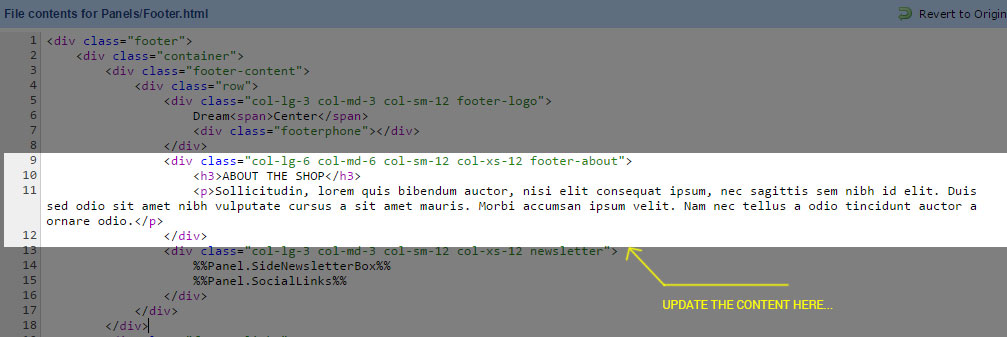
To edit this panel Go to Store admin > Design > Edit HTML/CSS and search (Cltr+F) for "%%Panel.Footer.html%%."
In this panel you will find this content, you will be able to modify this content as per your requirement here... Please check attached screen shot for more information.
Q: How to remove copyright text and powered by text from footer?
A: You will able to find this content under "%%Panel.Footer.html%%".
To know more on how to remove or update copyright text and powered by text from footer, please click here.
Q: How to remove "Powered by Bigcommerce" from Emails?
A: Email templates are the in-built functionality of BigCommerce
You can remove te powered by text form this templates, to know more on how to remove "Powered by Bigcommerce" from Emails, please click here.
Latest Products




All prices are in USD. © 2026 Dream Center. Sitemap